
Storing Uploaded Files and Serving Them in Express
Every time a user uploads a profile picture, shares a document, or attaches a resume, a hidden pipeline kicks in behind the scenes. But have you ever wondered where those files actually land? How does your server store them, serve them back to the browser, and keep malicious uploads from breaking your application?
In this guide, we’ll walk through the complete lifecycle of file uploads in web applications. We’ll explore where files are stored, compare local vs. external storage, learn how to serve them using Express, access them via URLs, and cover essential security practices. By the end, you’ll have a clear, production-aware understanding of how modern apps handle user uploads safely and efficiently.
Where Uploaded Files Are Stored
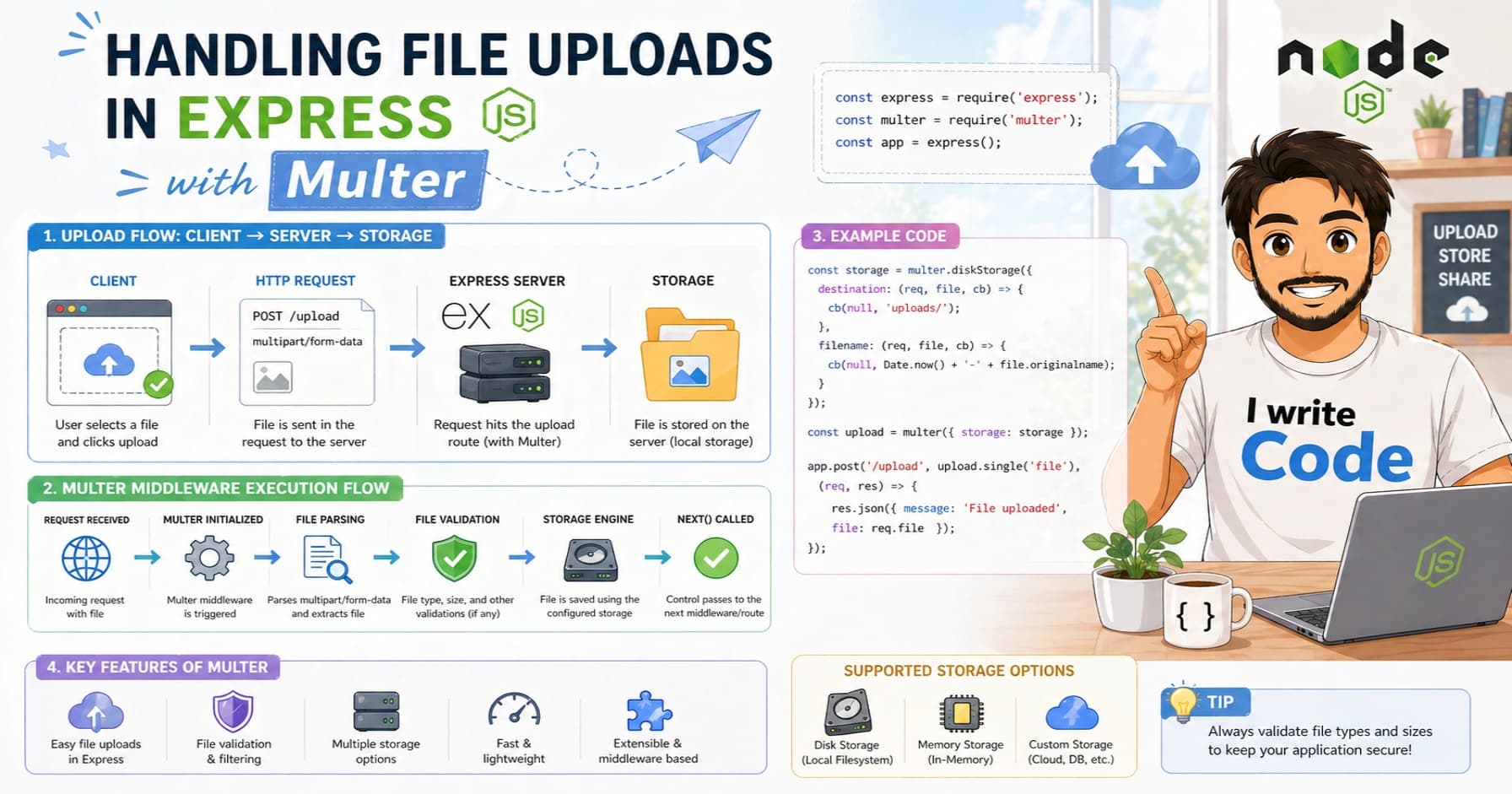
When a user submits a file through a web form, it doesn’t instantly appear in a permanent folder. Instead, the server receives the file as a continuous stream of bytes. In Node.js environments, middleware like multer or express-fileupload intercepts this stream and temporarily writes it to a system-defined temporary directory (such as /tmp on Linux or %TEMP% on Windows).
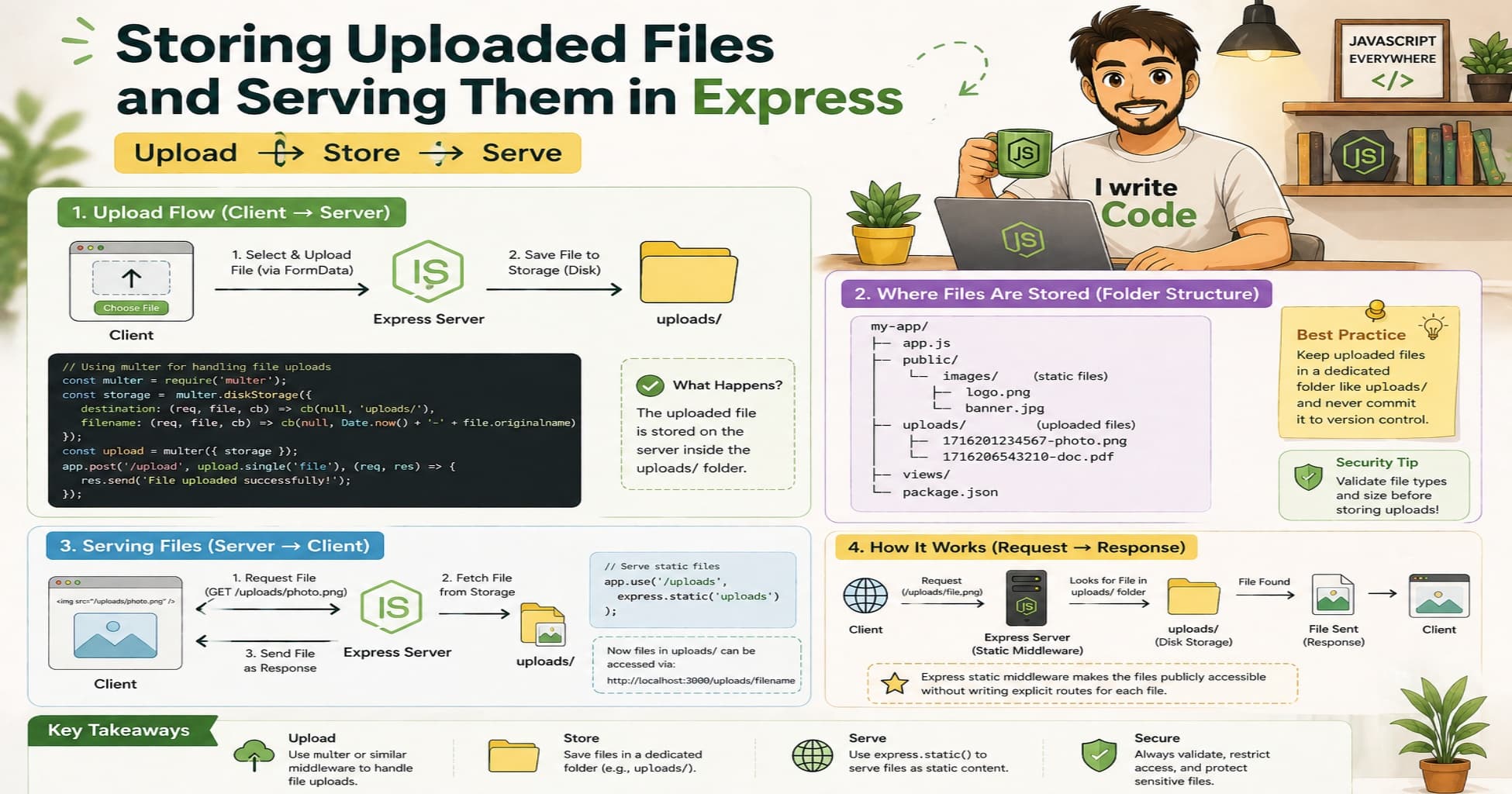
This temporary stage is crucial. It ensures that incomplete, interrupted, or malformed uploads don’t pollute your permanent storage. Once the upload finishes successfully, your application logic takes over. You can then validate the file, rename it, and move it to a dedicated permanent directory like uploads/, public/assets/, or storage/images/.
Developers typically store metadata about the file (original name, new name, size, MIME type, and storage path) in a database. This separation of file storage and metadata keeps your system organized and makes it easy to retrieve files later.
Local Storage vs. External Storage Concept
Once you decide where to save files permanently, you face a fundamental architectural choice: local storage or external/cloud storage.
Local Storage
Local storage means saving files directly on your server’s filesystem. It’s straightforward, requires zero external configuration, and works perfectly for learning, prototyping, or small-scale apps.
Pros:
Fast setup and zero external dependencies
Low latency for local reads/writes
Free (uses existing server disk)
Cons:
Doesn’t scale across multiple servers or containers
Manual backups and disk management required
Server migrations become complicated
Vulnerable to single-point hardware failure
External Storage
External storage refers to cloud object storage services like AWS S3, Google Cloud Storage, Azure Blob, or specialized media platforms like Cloudinary and Uploadcare.
Pros:
Horizontally scalable and highly available
Built-in CDN integration for fast global delivery
Automatic backups, versioning, and lifecycle policies
Decouples storage from your application servers
Cons:
Requires API setup and authentication
Incurs usage-based costs
Slightly more complex initial implementation
Best Practice: Start with local storage while learning, but design your upload service with an abstraction layer. This makes swapping to cloud storage later as simple as changing a configuration file rather than rewriting your entire codebase.
Serving Static Files in Express
Storing files is only half the equation. Users and browsers need to access them, and Express makes this effortless with its built-in express.static() middleware.
By default, Express does not expose your project directories to the web. This is a security feature. To safely serve uploaded files, you explicitly tell Express which folder should be publicly accessible:
const express = require('express');
const path = require('path');
const app = express();

// Serve files from the 'uploads' directory under the '/uploads' URL prefix
app.use('/uploads', express.static(path.join(__dirname, 'uploads')));

app.listen(3000, () => console.log('Server running on http://localhost:3000'));
With this configuration, any file saved inside the uploads/ folder becomes publicly accessible. The middleware automatically handles:
Correct MIME type headers
Efficient byte-range requests (useful for video/audio streaming)
Basic caching headers
Secure path resolution (prevents directory traversal)
Never use express.static() on your entire project root. Always isolate uploaded or public assets in a dedicated folder.
Accessing Uploaded Files via URL
Once static serving is configured, accessing files via URL becomes predictable and straightforward. When a file is uploaded, your backend should generate a safe, unique filename and store the relative path in your database.
For example, if a user with name: "Suprabhat", age: 23, uploads avatar.png, your backend might rename it to user_8f3a2b_avatar.png and save /uploads/user_8f3a2b_avatar.png in the database. Later, when rendering their profile, your frontend simply uses that path:
<img src="/uploads/user_8f3a2b_avatar.png" alt="User Avatar" />
If you migrate to cloud storage, the flow remains identical. Instead of a local path, your database stores the full cloud URL: https://your-bucket.s3.amazonaws.com/user_8f3a2b_avatar.png
Important URL Guidelines:
Never expose internal server paths or absolute filesystem routes.
Always serve files through a controlled prefix (
/uploads/,/assets/, etc.).Avoid dynamic routes that directly map user input to file paths without strict validation.
Use consistent naming conventions to prevent broken links and cache conflicts.
Security Considerations for Uploads
File uploads are consistently ranked among the top web application vulnerabilities. Without proper safeguards, attackers can upload malicious scripts, overwrite critical files, or exhaust your server’s disk space. Here’s how to lock down your upload pipeline:
1. Validate File Types Properly
Never trust the Content-Type header or file extension alone. Attackers can easily spoof them. Instead, inspect the file’s magic numbers (binary signature) using libraries like file-type or mmmagic. Maintain a strict allowlist (e.g., image/jpeg, image/png, application/pdf).
2. Enforce File Size Limits
Unrestricted uploads can trigger denial-of-service (DoS) attacks. Configure size limits directly in your middleware:
const upload = multer({
  limits: { fileSize: 5 * 1024 * 1024 } // 5MB max
});
3. Sanitize and Rename Filenames
User-provided filenames can contain path traversal sequences like ../../../etc/passwd or executable extensions like .php or .js. Always strip dangerous characters and rename files using UUIDs, timestamps, or cryptographic hashes.
4. Store Uploads Outside Executable Paths
Ensure your server never executes files from the upload directory. Configure your hosting environment or reverse proxy (Nginx/Apache) to treat upload folders as static-only. If possible, store sensitive uploads outside the web root and serve them through authenticated routes.
5. Implement Access Controls
Not all uploads should be public. For private documents or user-specific media, bypass express.static() and serve files through a route that verifies authentication and ownership before streaming the file with res.sendFile().
6. Scan for Malware (Production Grade)
For applications handling sensitive data or public submissions, integrate antivirus scanning using tools like ClamAV or cloud-based scanning APIs before permanently storing or serving files.
Conclusion
Handling file uploads might look simple on the surface, but it requires careful planning around storage architecture, accessibility, and security. Starting with local storage and Express’s static middleware gives you a solid foundation to understand the flow. As your application scales, transitioning to cloud storage and implementing strict validation will keep your system fast, reliable, and secure.
Remember the golden rules: never trust user input, always validate and sanitize, isolate upload directories, and design with both usability and safety in mind. With these practices, you’ll build file-handling features that work seamlessly for everyday users while keeping your infrastructure protected.
Ready to implement your first secure upload route? Spin up a local Express server, configure multer, apply the security checklist above, and watch your application handle files like a production-ready system. Happy coding!