
Git : All you Need
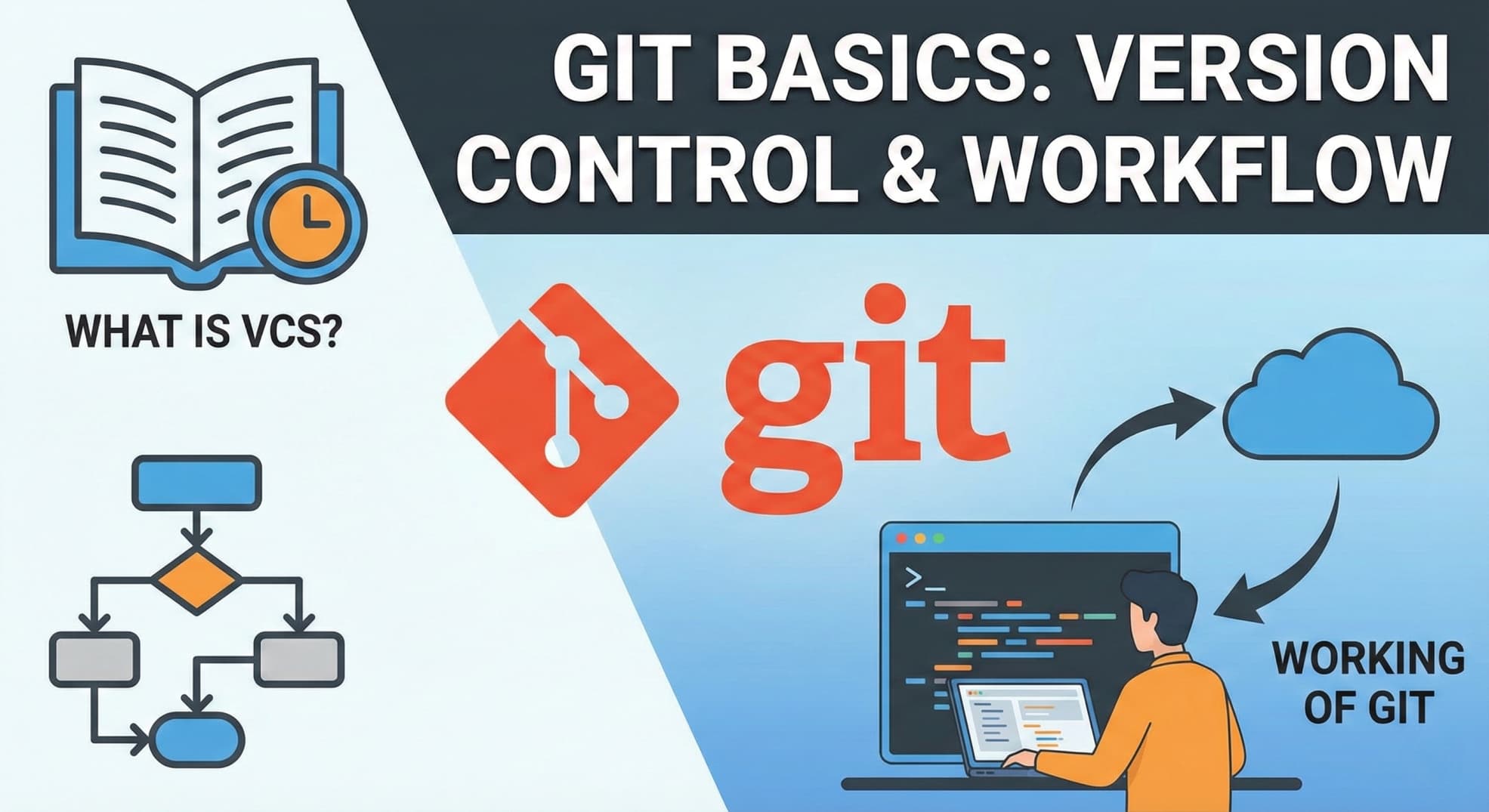
What is Git
Have you ever worked on a project or a coding assignment and suddenly... crash? You made a mistake, deleted the wrong file, and wished you could just press "Undo" on your entire life?
Or maybe you are working in a team, and everyone is sharing code via WhatsApp or emailing zip files named project_final_v2_FINAL_REAL.zip. It’s a mess, right?
Enter Git.
In this guide, we will break down what Git is, why every developer needs it, and how to use it without getting a headache.
To understand Git, you first need to understand the "family" it belongs to: the VCS.
What is a VCS (Version Control System)?
In plain English: It is a software tool that tracks changes to your files over time.
Think of it as a "Time Machine" for your project. It records every change you make to your code (or documents) in a special database. Because it tracks everything, you can look at earlier versions of your project and go back to them if you make a mistake.
What is Git, Actually?
imagine you are playing a video game. Before you attempt a difficult mission, what do you do? You save the game.
If you fail the mission or your character dies, you just reload that "Save Point" and try again. You don't start from the very beginning.
Git is exactly that, a Save Point system for your code.
Technically speaking: Git is a "Version Control System."
In simple terms: It tracks every change you make to your files. If you mess up, you can travel back in time to when your code was working perfectly.
Wait, what is GitHub then? Think of Git as the camera on your phone (the tool that takes the photo). Think of GitHub as Instagram (the cloud where you upload the photo to show the world). You use Git to work locally on your laptop, and you push your code to GitHub to keep a backup online.
Step-by-Step: Your First Git Workflow
(You need to setup git in your system, download from here - Git download)
Go to your project folder and open your terminal.
Step 1: Initialize (Start the engine)
git init
What happened? You just told Git, "Please start watching this folder." A hidden .git folder is created.
Step 2: Add Files (The "Staging" Area)
You wrote some code. Now you need to tell Git which files you want to save.
git add <file name>
or
git add .
The
.(dot): This means "Add ALL files in this folder."Analogy: Imagine you are shopping online.
git addis like putting items into your Shopping Cart. You haven't bought them yet; you've just selected them.
Step 3: Commit (The Save Point)
Now, let's permanently save these changes.
git commit -m "Added something"
The
-m: This stands for "message." Always write a clear message!Analogy: This is clicking "Place Order." The transaction is done. You now have a permanent record of this state.
Step 4: Push (Back it up online)
If your laptop crashes tomorrow, your code is gone. Let's send it to GitHub. (First, create a new repository on GitHub.com and copy the link).
git remote add origin <paste_your_github_link_here>
git push -u origin main
//After running this once, you can simply use
git push
- What happened? Your code flew from your local machine to the GitHub server. Now it's safe.
Some Key Terms
Before we type any commands, let's learn the vocabulary. In the Indian tech scene, people throw these words around a lot. Here is what they actually mean:
Repository (Repo): This is just a fancy word for the Folder where your project lives(stored in GitHub).
Commit: This is the Save Point. When you "commit," you are telling Git, "Take a snapshot of my code right now."
Push: Uploading your changes from your laptop to the cloud (GitHub).
Pull: Downloading the latest changes from the cloud to your laptop.
Branch: A parallel universe where you can experiment with new features without breaking the main code.
Conclusion
Git might look scary with its black screen and white text, but it is the most powerful tool in your developer arsenal. It saves your history, protects your work, and helps you collaborate. We discuss more about Git and GitHub in next blog (Advance Git).
Start small. Create a folder, git init, and make your first commit today. Your future self will thank you!