
Understanding HTML Tags and Elements
Every website you visit, whether it’s a news site, a social media feed, or this blogs built on a fundamental structure. It is created using HTML.
In this blog, we will understand what HTML is, why we use it, how tags and elements work, the difference between block and inline elements, and look at the most common tags you will use daily.
First, let’s understand what HTML is and why it is the foundation of the web.
What is HTML and why we use it
HTML stands for HyperText Markup Language. It is not a programming language like Python or JavaScript, it is a markup language. This means it is used to "mark up" or label different parts of a document so the computer knows what they are.
We use HTML to tell the web browser how to structure the content. It tells the browser: This part is a heading, This part is a paragraph, and This part is an image.
Without HTML, a browser would just see a messy text. HTML gives that text meaning and structure.
What is an HTML tag
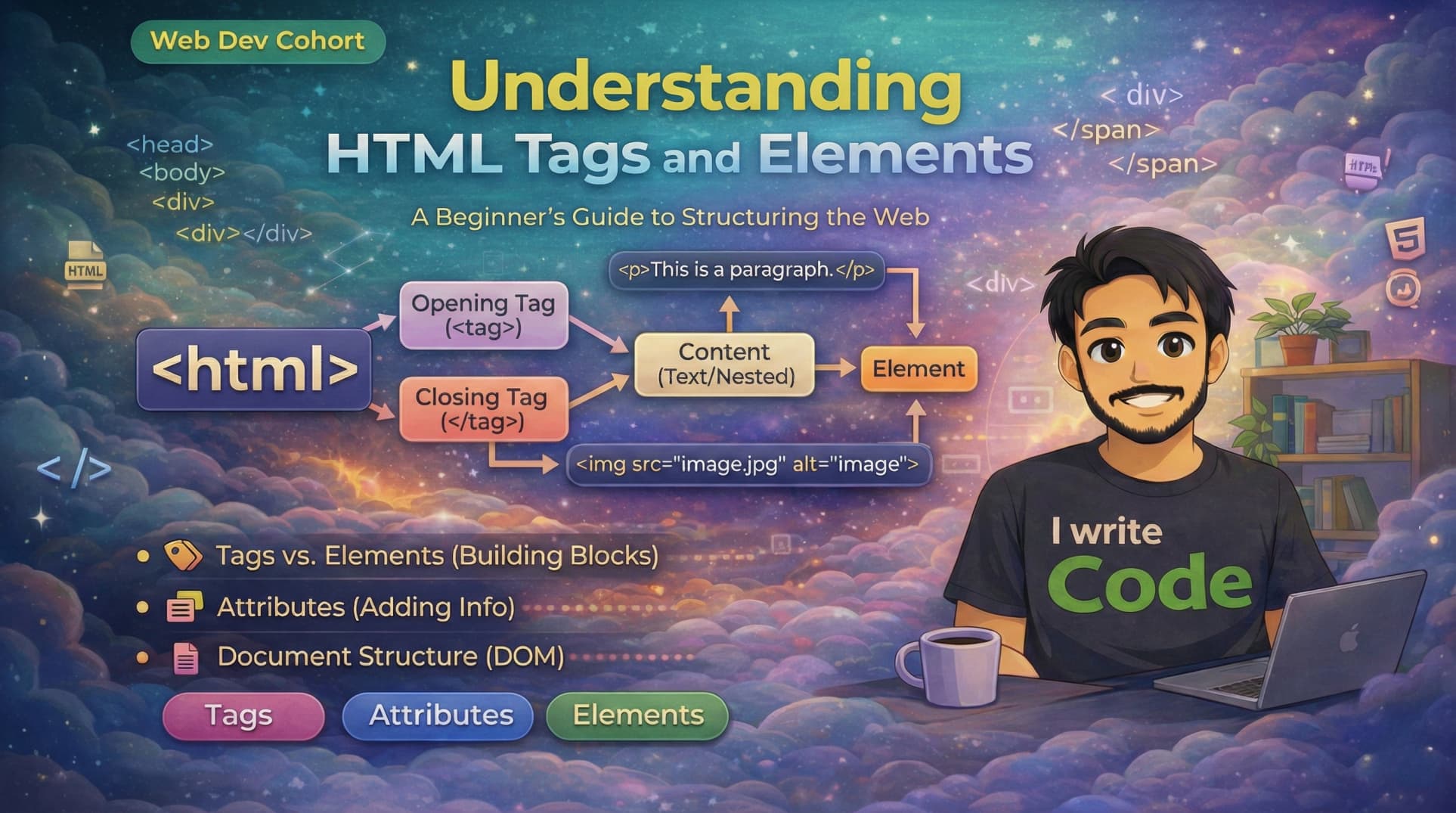
The building blocks of HTML are called tags. A tag is a keyword surrounded by angle brackets (< and >).
Tags are like instructions for the browser. When the browser sees a tag, it knows it needs to do something specific with the content inside it. For example, the <b> tag tells the browser to make the text bold.
Opening tag, closing tag, and content
Most HTML structures consist of three parts:
The Opening Tag: This marks the start of an element (e.g.,
<p>).The Content: The information you want to display (text, images, etc.).
The Closing Tag: This marks the end of an element. It looks just like the opening tag but includes a forward slash (e.g.,
</p>).
Example:
<p>Hello from Suprabhat.</p>
<p>is the opening tag.Hello from Suprabhat.is the content.</p>is the closing tag.
What an HTML element means
Beginners often confuse tags and elements. Here is the difference:
A tag is just the
<...>part.An element is the entire package: the opening tag + the content + the closing tag.
So, when we say paragraph element, we mean the whole thing from start to finish.
Self-closing (Void) Elements
Most elements follow the rule of Open, Content, Close. However, some elements are empty. They do not hold any text or other elements inside them. Because they have no content to wrap, they do not need a closing tag.
These are called Self-closing or Void elements.
Common Examples:
<br>: Inserts a line break.<img>: Embeds an image.<hr>: Creates a horizontal line.(or haan esee line marte hai, es par line nhi marte)
You just write the tag, and it does its job immediately.
Block-level vs Inline Elements
Not all elements behave the same way on a page. The two major categories of behavior are Block-level and Inline.
1. Block-level Elements
These elements act like distinct blocks.
They always start on a new line.
They take up the full width available (stretching from left to right).
Examples:
<div>,<h1>to<h6>,<p>.
2. Inline Elements
These elements flow with the text.
They do not start on a new line.
They only take up as much width as necessary.
Examples:
<span>,<a>(links),<b>(bold).
Commonly used HTML tags
To get started, you don't need to memorize every tag. Let’s build a real HTML file together. We will start with the root and keep adding tags one by one to see how the structure grows into a full page.
1. <html>
The root of the document. Every document starts with this. It tells the browser, Everything inside here is HTML code.
<html>
</html>
2. <head>
This contains meta-information (like the title) that isn't shown on the main page. We place this inside the <html> tag.
<html>
  <head>
    <title>Suprabhat's Tech Blog</title>
  </head>
</html>
3. <body>
This contains everything visible to the user. If you want people to see it, it must go here. We place this after the <head>, but still inside the <html>.
<html>
  <head>
    <title>Suprabhat's Tech Blog</title>
  </head>
  <body>
    </body>
</html>
4. <div>
A generic container used to group elements together. Since we want our content to be organized, let's put a main-container <div> inside the body.
<html>
  <head>
    <title>Suprabhat's Tech Blog</title>
  </head>
  <body>
    <div class="main-container">
    </div>
  </body>
</html>
5. <h1> to <h6>
Headings are used to title your content. Let's add a main heading inside our <div>.
<html>
  <head>
    <title>Suprabhat's Tech Blog</title>
  </head>
  <body>
    <div class="main-container">
      <h1>Welcome to My Blogs</h1>
    </div>
  </body>
</html>
6. <p>
Paragraphs are for normal text. Let's add a description under our heading.
<html>
  <head>
    <title>Suprabhat's Tech Blog</title>
  </head>
  <body>
    <div class="main-container">
      <h1>Welcome to My Blogs</h1>
      <p>Building Web & GenAI Software that (usually) work.</p>
    </div>
  </body>
</html>
7. <span>
This is used to style small parts of text without breaking the line (inline). Let's use it to highlight the word (usually) in our paragraph.
<html>
  <head>
    <title>Suprabhat's Tech Blog</title>
  </head>
  <body>
    <div class="main-container">
     <h1>Welcome to My Blogs</h1>
       <p>Building Web & GenAI Software that<span style="color: red;">(usually)</span>work.</p>
    </div>
  </body>
</html>
8. <a>
The Anchor tag creates links. Let's add a link to your portfolio at the end of the content.
<html>
  <head>
    <title>Suprabhat's Tech Blog</title>
  </head>
  <body>
    <div class="main-container">
      <h1>Welcome to My Blogs</h1>
       <p>Building Web & GenAI Software that<span style="color: red;">(usually)</span>work.</p>

      <a href="https://suprabhat.site/">Check out Suprabhat's Portfolio</a>
    </div>
  </body>
</html>
Now you have a complete, HTML file! You can copy the final code, save it as index.html, and open it in your browser to see the result.

We have various of tags for different works, but we do not need to memorize all of them. As we work and write more code, we learn them all eventually.
Conclusion
HTML is the skeleton of the web. It uses tags to define elements, understanding these basics tags, elements, and their behaviors, is the very first step to becoming a web developer. Once you understand HTML clearly, learning CSS and JavaScript becomes much easier.